
Rule #1: Use UGent-HPC whenever you can. If not, continue reading.
The nodes
All computing nodes have a hostname like moldynXX.ugent.be where XX is a two-digit number. There are a few categories: Below moldyn40: Old machines used for practical sessions during courses. moldyn47 to moldyn49, moldyn51 to moldyn55: More recent IBM dual and quadruple cores. To access these nodes from the CMM building, simply ssh to the machine (on port 22). To accessing the nodes from outside the CMM building, one has to login through the molgate.ugent.be server using the ssh protocol on port 45917. Login accounts are managed by Toon and Ward. The newest machine is moldyn58 which has 16 cores and 32 GB RAM (See the topic below).
For Windows desktops/laptops
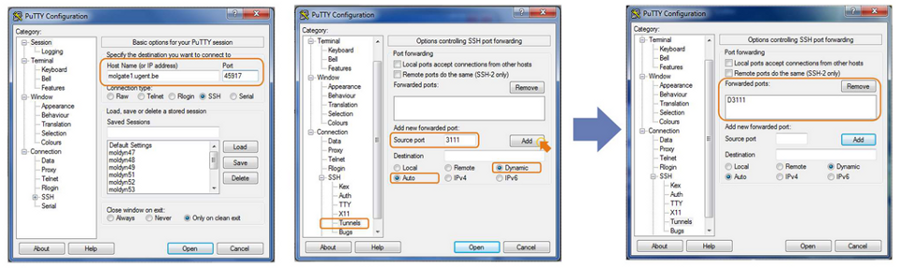
Probably the easiest programs to use to connect to the moldyn servers are PuTTY (http://www.chiark.greenend.org.uk/~sgtatham/putty/download.html) in order to execute commands WinSCP (http://winscp.net/eng/docs/lang:nl) to copy files It is convenient to set up one of the molgates as a SOCKS5 Proxy, as this will allow you to connect directly to all moldyn servers. This is not necessary if you're in the CMM building in Zwijnaarde: there you can connect directly with the moldyn servers. To do this, configure PuTTY to connect to molgate1 or molgate2 as indicated in the figure below:
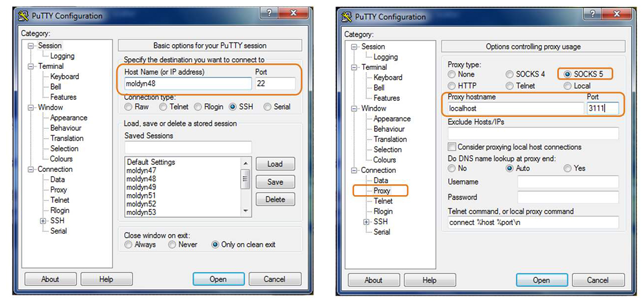
Now you can open more PuTTY windows to connect directly to the computing nodes using the following settings (e.g. moldyn48):
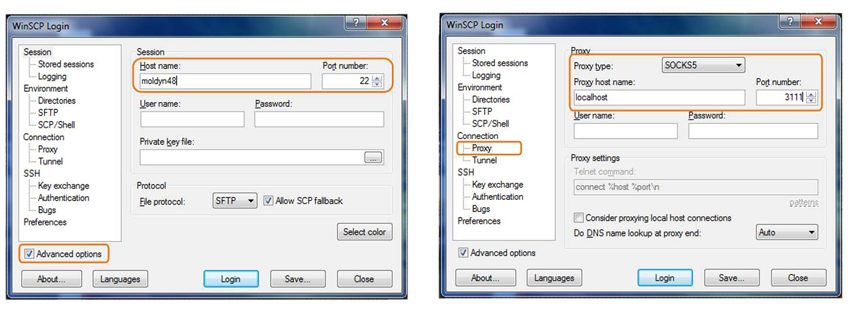
You can also transfer files directly from the servers to your own computer, by setting up WinSCP to use the SOCKS5 Proxy (make sure the box for 'Advanced options' is checked):
For Linux desktops/laptops
It is highly recommended to login with rsa key pairs instead of plain passwords. The following command creates a decent key pair: ssh-keygen -t rsa -b 2048 More information on using ssh-keys can be found here: http://www.sshkeychain.org/mirrors/SSH-with-Keys-HOWTO/ To connect to the compute nodes, we will use the SOCKS5 Proxy feature of Open SSH instead of port forwarding. (Apparently one needs netcat-openbsd, which is only installed by default in the more recent Linux distributions such as Ubuntu 10.4. We will also use autossh en NetworkManager to make sure the connection is always there. This is not necessary if you're in the CMM building in Zwijnaarde: there you can connect directly with the moldyn servers and you don't have to make any changes in your .ssh/config to connect. First, make sure netcat and autossh are installed:
sudo apt-get install autossh netcat-openbsd
I'm assuming you use a modern Linux distribution that use NetworkManager to handle it's network connections (Ubuntu, ...). Your .ssh/config should look like this:
Host molgate
    Hostname molgate.UGent.be
    User
    IdentityFile ~/.ssh/id-molgate (REPLACE BY YOUR KEY)
    Port 45917
    DynamicForward localhost:3111

Host hpc login.hpc.ugent.be
    HostName login.hpc.ugent.be
    User vscXXXXX
    IdentityFile ~/.ssh/id-hpc (REPLACE BY YOUR KEY)

Host tier1
    ProxyCommand ssh -q login.hpc.ugent.be 'exec nc login.muk.gent.vsc %p'
    User vscXXXXX
    IdentityFile ~/.ssh/id-hpc (REPLACE BY YOUR KEY)

Host node*.gent.vsc
    ProxyCommand ssh -q login.hpc.ugent.be 'exec nc %h %p'
    User vscXXXXX
    IdentityFile ~/.ssh/id-hpc (REPLACE BY YOUR KEY)

Host tier1b
    HostName login2-tier1.hpc.kuleuven.be
    User vscXXXXX
    IdentityFile ~/.ssh/id-hpc (REPLACE BY YOUR KEY)

Host moldyn47
    Hostname moldyn47.ugent.be
    ProxyCommand nc -x localhost:3111 %h %p

Host moldyn48
    Hostname moldyn48.ugent.be
    ProxyCommand nc -x localhost:3111 %h %p

...
With this config, you can connect directly to all HPC machines and nodes. You can even directly ssh to a node (if you have a job there) with:
ssh node2001.delcatty.gent.vsc
. You don't need VPN for this.
To be able to connect to any moldyn, the connection to the molgate should be open. We are going to use autossh to make sure it's always open:
autossh -M 17341 -f -N molgate
This will keep the connection open in the background and restore it if needed. If you want this to autostart on your system (recommend), create a script file to start it:
#!/bin/bash

autossh -M 17341 -f -N molgate
Save this file somewhere and make it executable: chmod +x 'name of the file' Now create a file to run this script on startup. Store the file as: ~/.config/autostart/autossh.desktop
[Desktop Entry]
Name=Autossh
GenericName=Molmod autossh
Comment=Start autossh to tunnel to molmod
Exec=/home/ward/scripts/molmod-tunnel.sh <= REPLACE THIS
Terminal=false
Type=Application
X-GNOME-Autostart-enabled=true
Now the script will be executed when you log in. The last part is to make sure the connection stays up if you change the network connection. We do this by signalling to autossh that it should check the connection and restart if needed. You will have to do the following steps as root. Create a file cat /etc/NetworkManager/dispatcher.d/90-autossh with the following contents:
#!/bin/sh

export LC_ALL=C

case "$2" in
    up|vpn-up)
    killall -USR1 autossh
    ;;
    down|vpn-down)
    killall -USR1 autossh
    ;;
esac

exit 0
After all of this, you should be able to connect to any moldyn or the hpc from anywhere. Try:
ssh hpc
ssh moldyn47
If you want easy access to your files, use sshfs:
sshfs moldyn54: ~/remote/
ls ~/remote/
To unmount, use:
cd ~
fusermount -u ~/remote/
With autofs it is even possible to do this on the fly. Only try this if you know something about Linux. You will need a password-less ssh key to the machine you want to access and your root account should have the ssh keys. You can simply copy your $HOME/.ssh/ to /root/.ssh/. Install autofs and sshfs: sudo apt-get install autofs sshfs. Add the following line to /etc/auto.master:
/mnt/ssh /etc/auto.sshfs uid=1000,gid=1000,--timeout=30,--ghost
Here the number after uid and gid should match the one from your user on your laptop. You can find them with the id command. The location /mnt/ssh can be anything but the directory MUST exist! Than create a file /etc/auto.sshfs with following contents:
hpc -fstype=fuse,rw,nodev,nonempty,noatime,allow_other,max_read=65536 :sshfs\#hpc\:
If this all works fine, you should find your HPC homedirectory in /mnt/ssh/hpc. This will be automounted when you needed it and unmounted when not in use. If you run into trouble, ask Ward.
SOCKS5 as an alternative to the UGent VPN
The SOCKS5 Proxy feature of SSH can also be used as an alternative for the UGent VPN for browsing and email. This is useful in several cases:
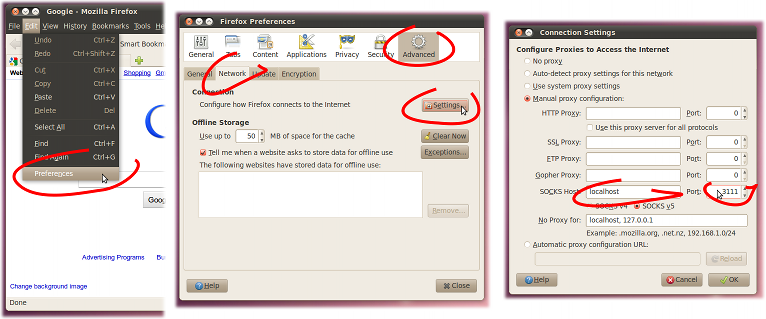
- When you are abroad and the internet connection is not decent - which is often the case with wireless internet in hotels - the UGent VPN tunnel just dies every five minutes and becomes basically useless. One can configure Firefox and Thunderbird to use the SOCKS5 tunnel (see figure below), which seems to work well on poor internet connections. This way one has access to Web of Science, smtp.ugent.be, or any other web or mail service that is normally only available from within the UGent network.
- When using the UGent VPN, all network traffic is piped over the VPN tunnel. This is not always desirable, e.g. you don't want to Skype over VPN. SOCKS5 is configured per application, so it does not have this problem.
- The UGent VPN has bandwidth and volume restrictions. The SOCKS5 tunnel does not have these limitations.
moldyn58
moldyn58 is a PowerEdge R730xd with a dual Intel Xeon E5-2630L v3 (8 cores each) and 32 GB ECC RAM. The complete specification is in attachment. It primarily meant as a backup machine. It has 2x 120 GB SSD in mirror RAID as / and 12x 6 TB NearLine SAS which is configured as RAID 10 with 2 hot spares (meaning 28 TB of usable space) for the /home. Dell machines have an 'adminitration system' called idrac which can control the machine even if it is switched off. You can access it by going to https://midrac58.private.ugent.be (only UGent network, Toon and Wim have the credentials). It's located at the S10 in rack V2R09 (together with all our machines). It sometimes goes wrong, the idrac should send mails about it to Wim, Michael, Toon and Ward.
The idrac sends all its syslogs to the molmod.ugent.be, molgate.ugent.be and moldyn58.ugent.be (but it seems not to be working great for the first two). It runs CentOS 7 with SELinux enabled.
Both the storage for the owncloud and the /home of the molgate are also on moldyn58. The /home/owncloud directory is for the owncloud and the /home/molgate is for the molgate. The sharing is done through NFSv4. This means that if you reboot moldyn58, both the owncloud/website and molgate will be unreachable. There seems to be an issue with starting the NFS server after reboot. If you have any trouble, execute: `sudo systemctl restart nfs-server`. The owncloud does not count to the quota of the user but the molgate does. Every use has a 500 GB quota (with 50 GB grace). It can be increased on request.
Webserver
The webserver molmod.ugent.be runs on the vmware virtual machine infrastructure of DICT. It can be managed through Athena (Ward and Toon have access). The server runs on CentOS 7. A list of points:
- The website runs on apache with the event server model. We use php-fpm for providing php. On https://molmod.ugent.be/server-status the current status can be found. Memcached is used for caching. The drupal website uses boost to convert all its pages to plain HTML. This is much much faster then actually requesting the page. It currently only works for http, not https. Prefer the http version of the site as it is much faster (impossible when logged in).
- We use mariadb as SQL database. Configured to use hugepages if available. We connect through a unix socket instead of tcp socket (faster). phpmyadmin runs on https://molmod.ugent.be/phpmyadmin/
- The main LDAP server also runs here. It has a mirror on molgate which receives push updates. Carefully think before you try to change anything to it. We use nslcd everywhere to link the unix accounts to the LDAP with nscd as caching. It's mostly purely PAM. A webinterface can be found on https://molmod.ugent.be/phpldapadmin/ On the molgate in the root home directory, there are some scripts to generate new user and disable other users.
- Exim is used for mails. It acts as a relay to smtp.ugent.be but can receive <username>@molmod.ugent.be mails, which get forwarded to the adres in the LDAP entry of the user.
- mailman runs on it for the mailinglist. Web interface on https://molmod.ugent.be/admin-cmm/mailman/listinfo
- fail2ban is used to secure everything. It uses ipsets for the block list. ipset list shows the currently blocked lists.
- The firewall has 2 zones: public and ugent. Use firewall-cmd to make changes.
- The systemlogger (rsyslog) sends all its logs to the molgate (including the logs of drupal). journald also stores its logs on disk. journalctl is your friend to fix stuff.
- Only a couple of accounts can log in to the website. It is controled by the file /etc/security/access.conf
- Backups: a daily rsync backup is made to moldyn58 (including a dump of the database and the LDAP). The script is in the root home directory and the backups are at /home/molmodserver on moldyn58. It keeps 62 days of backups.
- In the /root and /home there is a backup of the /etc directory.
- The system runs with SELinux enable in enforcing mode. This means that something will fail even if the permissions are correct. Follow /var/log/audit/audit.log. Test with setenforce 0 to see if SELinux is the crulpit. Do NOT disable it permanently. It provides a lot of additional security.
- ALWAYS make a backup BEFORE changing anything!
On the LDAP:
- Make sure the email address points to somewhere valid. It is used on several locations. If you want to use the account on the website, make sure the email is unique.
- By adding 'Host: ' lines to an account, you can limit its ability to log in to a list of servers (add multiple Host lines). If not set, there are no limits
- By setting loginShell to '/bin/false', the account cannot log into anything anymore (including website)
- employeeType determines the rights on the website. Valid values are: ZAP, regular, student and guest.
- The group determines the rights on the machines.
- cmm: gid=10001
- thesisstudent: gid=10003
- student: gid=10002
- cmmguests: gid=10004
- The groups admin and sudoadmins are special as the allowed access to certain stuff (aka sudo on the machines). It also allows access to some special corners on the websites.
- All machines should have an account 'cmmlocal' which is a real local account. It can be used if the LDAP is down.
- Please be carefull before medling with this.
molgate
The molgate.ugent.be also runs on the cloud of the DICT. It runs on Debian 8. It uses ordinary fail2ban to limit access. You get banned for 12h if you fail 6 times. Reality learns that this is no issues except for students. It has a mirror of the main ldap server and receives logs from the webserver and moldyn58. The harddisk is rather small so the /home is an NFS share of moldyn58.

